
Ambient fluid of the propeller or wing: choosing air or water and setting the density
To select the ambient fluid of a propeller or wing, open the Project data tab, then the Fluid sub-tab, and click "Modify the ambient fluid": the fluid editor opens and you choose air, water or another gas or liquid. The fluid in which the propeller operates must be checked at the very start of the project. You can change it later at any time, but the propeller will then need to be updated.

The fluid is chosen in the Project data tab, Fluid sub-tab (shown in French in this capture).
In this page:
- Why the ambient fluid matters
- Changing the ambient fluid with the fluid editor
- Example: air at 20 °C and 500 m altitude
1: Why the ambient fluid matters
The fluid sets the physical properties the calculation uses: density, viscosity, saturation vapour pressure and speed of sound. To a first approximation, the loads on the blade are proportional to the density: water is about 800 times denser than air. Viscosity enters the Reynolds number, which determines the performance of the profiles. Saturation vapour pressure enters cavitation, and the speed of sound enters the transonic blade alerts.
The fluid of a project is therefore not a detail: choosing sea water instead of fresh water, or the air of a high-altitude site instead of sea-level air, changes the results. That is why we invite you to check it before you draw the blade.
2: Changing the ambient fluid with the fluid editor
To change the ambient fluid, click Modify the ambient fluid to open the fluid editor. More than 120 gases or liquids, with their viscosity and density data as a function of temperature, can be used directly. For air, the altitude will be requested to adjust the density according to the pressure.
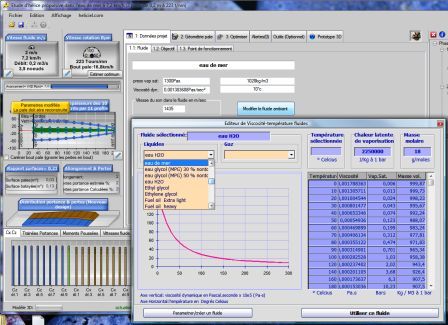
The fluid editor: a liquid or a gas, a temperature, and the table of viscosity, saturation vapour pressure and density, with the viscosity curve.
In the editor, you choose the fluid from the list of liquids or the list of gases, enter the temperature, then click Use this fluid. A Set up/create a fluid button lets you add a fluid that is not in the list.
3: Example: air at 20 °C and 500 m altitude
Example of fluid selection: in the Project data tab, open the fluid editor, select air at 20 °C, then click Use this fluid. Heliciel then asks how to set the density of the air: "Yes" uses the atmospheric pressure calculated from the altitude, "No" lets you enter the pressure in bar directly. Click "Yes" to enter the altitude.
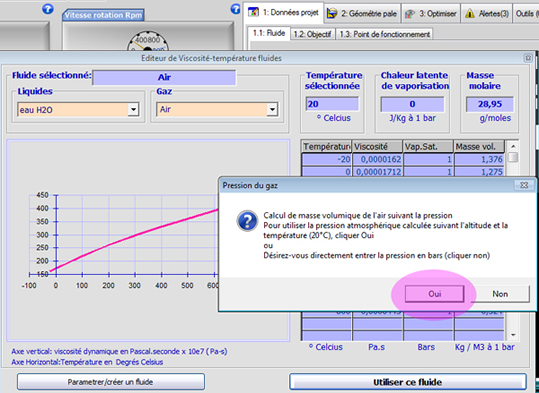
Air at 20 °C is selected; the window asks whether the pressure comes from the altitude (Yes) or is entered in bar (No) (shown in French in this capture).
Let us imagine that the altitude of our site is 500 metres. We enter the value 500 (in metres).
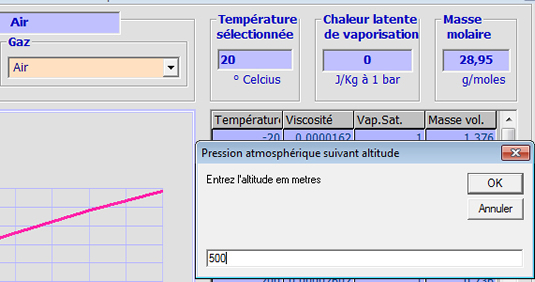
The altitude of the site, entered in metres.
Heliciel updates the density of your fluid: 1.143 kg/m³. The Fluid tab also shows the saturation vapour pressure, the dynamic viscosity, the temperature and the speed of sound in the fluid.
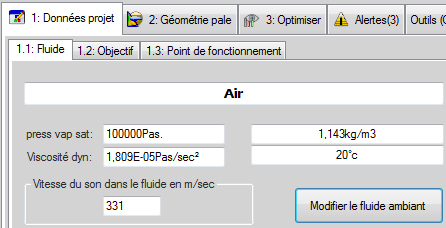
The Fluid tab after the choice: the density of air at 500 m altitude is 1.143 kg/m³.
To go further, once the fluid is chosen, we can set the fluid speed and the rotation speed that define the operating point of the propeller.
 Global site map
 Mecaflux
 Tutorials Mecaflux Pro3D
 Tutorials Heliciel
 Tutorials Heliciel PRO CFD
 Mecaflux Store
 Compare software functions
 Quotes, Orders, Payment Methods
 project technical studies